DocumentationWriting
Blocks
Every kind of thing you can put on a page besides prose: quotes, verse, callouts, tables, images, definition lists and page breaks.
A paragraph is a block. So is a quote, a table, a poem, a picture. Each type carries its own typography, set once in FormattingBlocks and applied to every block of that type in the book.
Inserting a block
Two routes, the same list:
In the toolbar above the manuscript.
The slash menu opens only on an empty line. Typing / mid-paragraph does nothing.
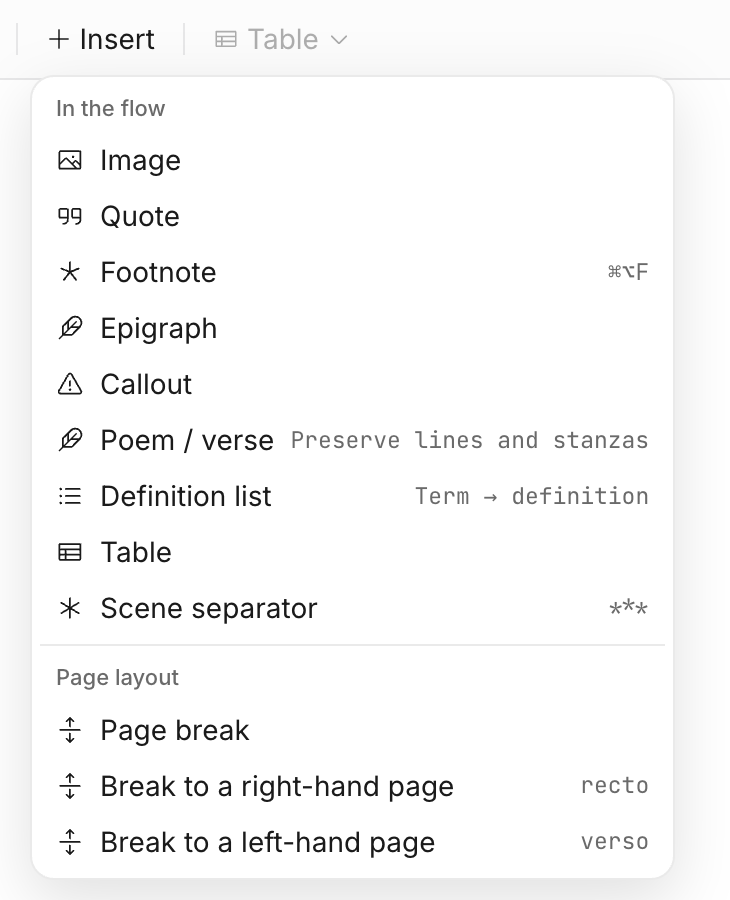
In the flow
| Block | What it is for | Shortcut |
|---|---|---|
| Image | A figure, with a caption and alt text | |
| Quote | A quotation set apart from the prose | |
| Footnote | A note at the foot of the page | ⌘⌥F |
| Epigraph | A quotation at the head of a chapter | |
| Callout | An aside: note, tip, warning or example | |
| Poem / verse | Lines and stanzas, kept as written | |
| Definition list | Term and definition pairs | |
| Table | Rows and columns, with a header row | |
| Scene separator | A break between scenes inside a chapter | *** |
Page layout
| Block | Effect |
|---|---|
| Page break | The next block starts a new page |
| Break to a right-hand page | Starts on a recto, inserting a blank if needed |
| Break to a left-hand page | Starts on a verso |
Kinds of block
The block type menu in the toolbar names the block your cursor is in and offers the others. A paragraph can be turned into a heading or a quotation and back without retyping it; a standfirst or an editorial aside is still a paragraph, set the way FormattingBlocks says that kind is set.
| Kind | Used for |
|---|---|
| Body text | Ordinary prose |
| Standfirst | An opening line set larger, flush left and unindented |
| Editorial voice | An intrusion in the publisher’s voice rather than the author’s |
| Heading | A division inside the chapter |
| Subheading | A division inside a heading |
| Quotation | Someone else’s words, set in from the measure |
| Code | Set in the book’s monospace, never hyphenated |
Headings inside a chapter take the typeface and the sizes set under Headings in
FormattingBlocks. A chapter’s own title is not a block: it is set on the chapter opening.
A quotation’s source
Type the quote, then click the line beneath it and type the source — a name, a work, a date. It belongs to the quotation rather than following it as a paragraph of its own, so it moves with the quote, and the theme sets it the way a source is set: smaller, ranged right, often in small capitals.
Quotes and epigraphs both take one. On a quotation that has none, the line shows only while you are working in that quotation, so a page of dialogue is not a column of prompts.
Verse
Verse keeps every line and every indent exactly as typed. ⌘⏎ starts a new stanza.
Lines that are too long for the measure are run over with a hanging indent rather than wrapped flush, so a run-over reads as a continuation rather than as a new line of poetry.
Tables
Insert gives you a 3×3 table with a header row. Once the cursor is inside one, the Table menu in the toolbar becomes active:
- Insert row above / below, insert column left / right
- Toggle header row
- Merge or split cells
- Delete row / column / table
A table that is too wide for the text measure is scaled down or rotated in print. Check it in Preview.
Images
Insert an image and it lands inline. Its placement is set in the Properties panel:
| Placement | Result |
|---|---|
| In the text | Sits in the flow at the width you set |
| Full measure | Spans the text column |
| Beside the text, left / right | Text wraps around it |
| A page of its own | Takes a page, no text |
| Off the edge of the page | Bleeds past the trim — needs bleed set in the Page panel |
Width is always a fraction of the text measure, never a pixel count, so an image keeps its proportion when you change trim size or margins.
Alt text describes the picture for a screen reader and is required for an accessible EPUB. The Media panel lists every image in the book and flags the ones with none.
Callouts
Four kinds, plus one you title yourself:
| Kind | For |
|---|---|
| Note | An aside in the book’s own voice |
| Tip | Something the reader can act on |
| Warning | Something that goes wrong if ignored |
| Example | A worked case set apart from the argument |
| Custom | Titled by the book rather than by a kind |
Each kind takes its own colour and treatment in FormattingBlocks.